# Pages Plugin Documentation
The plugin currently includes three components: Static Page, Static Menu and Static Breadcrumbs.
## Integrating the Static Pages Plugin
In the simplest case you could create a [layout](https://octobercms.com/docs/cms/layouts) in the CMS area and include the plugin's components to its body. The next example layout outputs a menu, breadcrumbs and a static page:
```twig
{{ this.page.title }}
{% component 'staticMenu' %}
{% component 'staticBreadcrumbs' %}
{% page %}
```
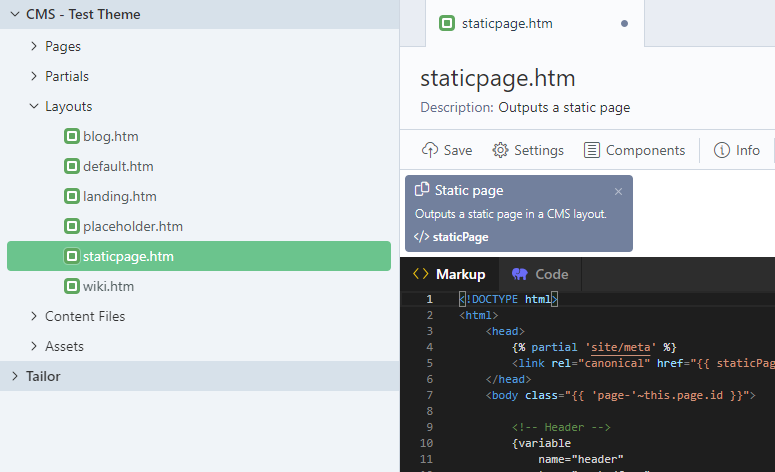 {.img-responsive .frame}
## Static Pages
Include the Static Page [component](http://octobercms.com/docs/cms/components) to the layout. The Static Page component has two public properties:
- `title` - specifies the static page title.
- `content` - the static page content.
## Static Menus
Add the staticMenu component to the static page layout to output a menu. The static menu component has the `code` property that should refer a code of a static menu the component should display. In the Inspector the `code` field is displayed as Menu.
The static menu component injects the `menuItems` page variable. The default component partial outputs a simple nested unordered list for menus:
```html
```
You might want to render the menus with your own code. The `menuItems` variable is an array of the `RainLab\Pages\Classes\MenuItemReference` objects. Each object has the following properties:
- `title` - specifies the menu item title.
- `url` - specifies the absolute menu item URL.
- `isActive` - indicates whether the item corresponds to a page currently being viewed.
- `isChildActive` - indicates whether the item contains an active subitem.
- `items` - an array of the menu item subitems, if any. If there are no subitems, the array is empty
The static menu component also has the `menuItems` property that you can access in the Twig code using the component's alias, for example:
```twig
{% for item in staticMenu.menuItems %}
{{ item.title }}
{% endfor %}
```
## Breadcrumbs
The staticBreadcrumbs component outputs breadcrumbs for static pages. This component doesn't have any properties. The default component partial outputs a simple unordered list for the breadcrumbs:
```html
```
The component injects the `breadcrumbs` page variable that contains an array of the `MenuItemReference` objects described above.
## Setting the Active Menu Item Explicitly
In some cases you might want to mark a specific menu item as active explicitly. You can do that in the page's [`onInit()`](http://octobercms.com/docs/cms/pages#dynamic-pages) function with assigning the `activeMenuItem` page variable a value matching the menu item code you want to make active. Menu item codes are managed in the Edit Menu Item popup.
```php
function onInit()
{
$this['activeMenuItem'] = 'blog';
}
```
## Linking to Static Pages
When a static page is first created it will be assigned a file name based on the URL. For example, a page with the URL **/chairs** will create a content file called **static-pages/chairs.htm** in the theme. This file will not change even if the URL is changed at a later time.
To create a link to a static page, use the `|staticPage` filter:
```twig
Go to Chairs
```
This filter translates to PHP code as:
```php
echo RainLab\Pages\Classes\Page::url('chairs');
```
If you want to link to the static page by its URL, simply use the `|app` filter:
```twig
Go to Chairs
```
Linking to the current page, if the component name is called `staticPage`:
```twig
{{ staticPage.page.baseFileName|staticPage }}
```
## Manually Displaying a Static Menu
When a static menu is first created it will be assigned a file name based on the menu name (menu code can also be manually defined). For example, a menu with the name **Primary Nav** will create a meta file called **menus/primary-nav.yaml** in the theme. This file will not change even if the menu name is changed at a later time.
To render a static menu based on a menu code from the `staticmenupicker` dropdown form widget:
You can either define the code property on the staticMenu component.
```twig
{% component 'staticMenu' code=this.theme.primary_menu %}
```
Or, use the resetMenu method on the staticMenu component, so we can manually control the menu output without having to create a staticMenu partial override.
```twig
{% set menuItems = staticMenu.resetMenu(this.theme.primary_menu) %}
```
## Form Widgets
If you need to select from a list of static pages in your own backend forms, you can use the `staticpagepicker` widget:
```yaml
fields:
field_name:
label: Static Page
type: staticpagepicker
```
The field's assigned value will be the static page's file name, which can be used to link to the page as described above.
If you need to select from a list of static menus in your own backend forms, you can use the `staticmenupicker` widget:
```yaml
fields:
field_name:
label: Static Menu
type: staticmenupicker
```
The field's assigned value will be the static menu's code, which can be used to link to the menu as described above.
## Placeholders
[Placeholders](https://octobercms.com/docs/cms/layouts#placeholders) defined in the layout are automatically detected by the Static Pages plugin. The Edit Static Page form displays a tab for each placeholder defined in the layout used by the page. Placeholders are defined in the layout in the usual way:
```twig
{% placeholder ordering %}
```
The `placeholder` tag accepts some optional attributes:
- `title`: manages the tab title in the Static Page editor.
- `type`: manages the placeholder type. The following values are supported - **text**, **html** and **hidden**.
The content of text placeholders is escaped before it's displayed. Text placeholders are edited with a regular (non-WYSIWYG) text editor. The title and type attributes should be defined after the placeholder code:
```twig
{% placeholder ordering title="Ordering information" type="text" %}
```
They should also appear after the `default` attribute, if it's presented.
```twig
{% placeholder ordering default title="Ordering information" type="text" %}
There is no ordering information for this product.
{% endplaceholder %}
```
To prevent a placeholder from appearing in the editor set the `type` attribute to **hidden**.
```twig
{% placeholder systemInfo type="hidden" %}
```
## Creating New Menu Item Types
Plugins can extend the Static Pages plugin with new menu item types. Please refer to the [Blog plugin](https://octobercms.com/plugin/rainlab-blog) for the integration example. New item types are registered with the API events triggered by the Static Pages plugin. The event handlers should be defined in the `boot()` method of the [plugin registration file](https://octobercms.com/docs/plugin/registration#registration-file). There are three events that should be handled in the plugin.
- `pages.menuitem.listType` event handler should return a list of new menu item types supported by the plugin.
- `pages.menuitem.getTypeInfo` event handler returns detailed information about a menu item type.
- `pages.menuitem.resolveItem` event handler "resolves" a menu item information and returns the actual item URL, title, an indicator whether the item is currently active, and subitems, if any.
The next example shows an event handler registration code for the Blog plugin. The Blog plugin registers two item types. As you can see, the Blog plugin uses the Category class to handle the events. That's a recommended approach.
```php
public function boot()
{
Event::listen('pages.menuitem.listTypes', function() {
return [
'blog-category'=>'Blog category',
'all-blog-categories'=>'All blog categories',
];
});
Event::listen('pages.menuitem.getTypeInfo', function($type) {
if ($type == 'blog-category' || $type == 'all-blog-categories') {
return Category::getMenuTypeInfo($type);
}
});
Event::listen('pages.menuitem.resolveItem', function($type, $item, $url, $theme) {
if ($type == 'blog-category' || $type == 'all-blog-categories') {
return Category::resolveMenuItem($item, $url, $theme);
}
});
}
```
### Registering New Menu Item Types
New menu item types are registered with the `pages.menuitem.listTypes` event handlers. The handler should return an associative array with the type codes in indexes and type names in values. It's highly recommended to use the plugin name in the type codes, to avoid conflicts with other menu item type providers. Example:
```php
[
`my-plugin-item-type` => 'My plugin menu item type'
]
```
### Returning Information About an Item Type
Plugins should provide detailed information about the supported menu item types with the `pages.menuitem.getTypeInfo` event handlers. The handler gets a single parameter - the menu item type code (one of the codes you registered with the `pages.menuitem.listTypes` handler). The handler code must check whether the requested item type code belongs to the plugin. The handler should return an associative array in the following format:
```
Array (
[dynamicItems] => 0,
[nesting] => 0,
[references] => Array (
[11] => News,
[12] => Tutorials,
[33] => Philosophy
)
[cmsPages] => Array (
[0] => Cms\Classes\Page object,
[1] => Cms\Classes\Page object
)
)
```
All elements of the array are optional and depend on the menu item type. The default values for `dynamicItems` and `nesting` are `false` and these keys can be omitted.
#### dynamicItems element
The `dynamicItems` element is a Boolean value indicating whether the item type could generate new menu items. Optional, false if omitted. Examples of menu item types that generate new menu items: **All blog categories**, **Static page**. Examples of item types that don't generate new menu items: **URL**, **Blog category**.
#### nesting element
The `nesting` element is a Boolean value indicating whether the item type supports nested items. Optional, `false` if omitted. Examples of item types that support nesting: **Static page**, **All static pages**. Examples of item types that don't support nesting: **Blog category**, **URL**.
#### references element
The `references` element is a list objects the menu item could refer to. For example, the **Blog category** menu item type returns a list of the blog categories. Some object supports nesting, for example static pages. Other objects don't support nesting, for example the blog categories. The format of the `references` value depends on whether the references have subitems or not. The format for references that don't support subitems is
```
['item-key' => 'Item title']
```
The format for references with subitems is
```
['item-key' => ['title'=>'Item title', 'items'=>[...]]]
```
The reference keys should reflect the object identifier they represent. For blog categories keys match the category identifiers. A plugin should be able to load an object by its key in the `pages.menuitem.resolveItem` event handler. The references element is optional, it is required only if a menu item type supports the Reference drop-down, or, in other words, if the user should be able to select an object the menu item refers to.
#### cmsPages element
The `cmsPages` is a list of CMS pages that can display objects supported by the menu item type. For example, for the **Blog category** item type the page list contains pages that host the `blogPosts` component. That component can display a blog category contents. The `cmsPages` element should be an array of the `Cms\Classes\Page` objects. The next code snippet shows how to return a list of pages hosting a specific component.
```php
use Cms\Classes\Page as CmsPage;
use Cms\Classes\Theme;
// ...
$result = [];
// ...
$theme = Theme::getActiveTheme();
$pages = CmsPage::listInTheme($theme, true);
$cmsPages = [];
foreach ($pages as $page) {
if (!$page->hasComponent('blogPosts')) {
continue;
}
$cmsPages[] = $page;
}
$result['cmsPages'] = $cmsPages;
// ...
return $result;
```
### Resolving Menu Items
When the Static Pages plugin generates a menu on the front-end, every menu item should **resolved** by the plugin that supplies the menu item type. The process of resolving involves generating the real item URL, determining whether the menu item is active, and generating the subitems (if required). Plugins should register the `pages.menuitem.resolveItem` event handler in order to resolve menu items. The event handler takes four arguments:
* `$type` - the item type name. Plugins must only handle item types they provide and ignore other types.
* `$item` - the menu item object (RainLab\Pages\Classes\MenuItem). The menu item object represents the menu item configuration provided by the user. The object has the following properties: `title`, `type`, `reference`, `cmsPage`, `nesting`.
* `$url` - specifies the current absolute URL, in lower case. Always use the `Url::to()` helper to generate menu item links and compare them with the current URL.
* `$theme` - the current theme object (`Cms\Classes\Theme`).
The event handler should return an array. The array keys depend on whether the menu item contains subitems or not. Expected result format:
```
Array (
[url] => https://example.com/blog/category/another-category
[isActive] => 1,
[items] => Array (
[0] => Array (
[title] => Another category
[url] => https://example.com/blog/category/another-category
[isActive] => 1
)
[1] => Array (
[title] => News
[url] => https://example.com/blog/category/news
[isActive] => 0
)
)
)
```
The `url` and `isActive` elements are required for menu items that point to a specific page, but it's not always the case. For example, the **All blog categories** menu item type doesn't have a specific page to point to. It generates multiple menu items. In this case the items should be listed in the `items` element. The `items` element should only be provided if the menu item's `nesting` property is `true`.
As the resolving process occurs every time when the front-end page is rendered, it's a good idea to cache all the information required for resolving menu items, if that's possible.
If your item type requires a CMS page to resolve item URLs, you might need to return the selected page's URL, and sometimes pass parameters to the page through the URL. The next code example shows how to load a blog category CMS page referred by a menu item and how to generate an URL to this page. The blog category page has the `blogPosts` component that can load the requested category slug from the URL. We assume that the URL parameter is called 'slug', although it can be edited manually. We skip the part that loads the real parameter name for the simplicity. Please refer to the [Blog plugin](https://octobercms.com/plugin/rainlab-blog) for the reference.
```php
use Cms\Classes\Page as CmsPage;
use October\Rain\Router\Helper as RouterHelper;
use Str;
use Url;
...
$page = CmsPage::loadCached($theme, $item->cmsPage);
// Always check if the page can be resolved
if (!$page) {
return;
}
// Generate the URL
$url = CmsPage::url($page->getBaseFileName(), ['slug' => $category->slug]);
$url = Url::to(Str::lower(RouterHelper::normalizeUrl($url)));
```
To determine whether an item is active just compare it with the `$url` argument of the event handler.
### Overriding Generated References
In order to override generated references you can listen to `pages.menu.referencesGenerated` event that fires right before injecting to page object. For example you can filter the unwanted menu entries.
## Custom Page Fields
There is a special syntax you can use inside your layout to add custom fields to the page editor form, called *Syntax Fields*. For example, if you add the following markup to a Layout that uses Static Pages:
```
{variable name="tagline" label="Tagline" tab="Header" type="text"}{/variable}
{variable name="banner" label="Banner" tab="Header" type="mediafinder" mode="image"}{/variable}
{variable name="color" label="Color" tab="Header" type="dropdown"
options="blue:Blue | orange:Orange | red:Red"
}{/variable}
```
These act just like regular form field definitions. Accessing the variables inside the markup is just as easy:
```twig
{{ tagline }}
 ```
All custom fields are placed in the Secondary tabs container (next to Content field). If you need to place them in the Primary tabs container, use *placement="primary"* attribute.
```
{variable name="tagline" label="Tagline" tab="Header" type="text" placement="primary"}{/variable}
```
Alternatively you may use the field type as the tag name, here we use the `{text}` tag to directly render the `tagline` variable:
```html
```
All custom fields are placed in the Secondary tabs container (next to Content field). If you need to place them in the Primary tabs container, use *placement="primary"* attribute.
```
{variable name="tagline" label="Tagline" tab="Header" type="text" placement="primary"}{/variable}
```
Alternatively you may use the field type as the tag name, here we use the `{text}` tag to directly render the `tagline` variable:
```html
{text name="tagline" label="Tagline"}Our wonderful website{/text}
```
You may also use the `{repeater}` tag for repeating content:
```html
{repeater name="content_sections" prompt="Add another content section"}
{text name="content_header" label="Content section" placeholder="Type in a heading and enter some content for it below"}{/text}
{richeditor name="content_body" size="large"}{/richeditor}
{/repeater}
```
For more details on syntax fields, see the [Parser section](https://octobercms.com/docs/services/parser#dynamic-syntax-parser) of the October documentation.
## Custom Menu Item Form Fields
Just like CMS objects have the view bag component to store arbitrary values, you may use the `viewBag` property of the `MenuItem` class to store custom data values and add corresponding form fields.
```php
Event::listen('backend.form.extendFields', function ($widget) {
if (
!$widget->getController() instanceof \RainLab\Pages\Controllers\Index ||
!$widget->model instanceof \RainLab\Pages\Classes\MenuItem
) {
return;
}
$widget->addTabFields([
'viewBag[featured]' => [
'tab' => 'Display',
'label' => 'Featured',
'comment' => 'Mark this menu item as featured',
'type' => 'checkbox'
]
]);
});
```
This value can then be accessed in Twig using the `{{ item.viewBag }}` property on the menu item. For example:
```twig
{% for item in items %}
{{ item.title }}
{% endfor %}
```
## Components
### Child Pages (`childPages`)
Outputs a list of child pages of the current page. The default component partial outputs a simple nested unordered list:
```html
```
You might want to render the list with your own code. The `childPages.pages` variable is an array of arrays representing the child pages. Each of the arrays has the following items:
Property | Type | Description
-------- | ---- | -----------
`url` | `string` | The relative URL for the page (use `{{ url | app }}` to get the absolute URL)
`title` | `string` | Page title
`page` | `RainLab\Pages\Classes\Page` | The page object itself
`viewBag` | `array` | Contains all the extra data used by the page
`is_hidden` | `bool` | Whether the page is hidden (only accessible to backend users)
`navigation_hidden` | `bool` | Whether the page is hidden in automaticaly generated contexts (i.e menu)
#### Example of Custom Markup for Component
```html
{% for page in childPages.pages %}
{{ page.title }}
{% endfor %}
```
### Static Breadcrumbs (`staticBreadcrumbs`)
Outputs a breadcrumb navigation for the current static page. The default component partial outputs a simple unordered list for breadcrumbs:
```twig
{% if breadcrumbs %}
{% endif %}
```
The following page variables are available:
Variable | Type | Description
-------- | ---- | -----------
`breadcrumbs` | `array` | Array of `RainLab\Pages\Classes\MenuItemReference` objects representing the defined menu
You might want to render the breadcrumbs with your own code. The `breadcrumbs` variable is an array of the `RainLab\Pages\Classes\MenuItemReference` objects. Each object has the following properties:
Property | Type | Description
-------- | ---- | -----------
`title` | `string` | Menu item title
`url` | `string` | Absolute menu item URL
`isActive` | `bool` | Indicates whether the item corresponds to a page currently being viewed
`isChildActive` | `bool` | Indicates whether the item contains an active subitem.
`items` | `array` | The menu item subitems, if any. If there are no subitems, the array is empty
#### Example of Custom Markup for Component
```html
{% for item in staticBreadCrumbs.breadcrumbs %}
{{ item.title }}
{% endfor %}
```
### Static Menu (`staticMenu`)
Outputs a single menu. The default component partial outputs a simple nested unordered list for menus:
```html
```
The following properties are available:
Property | Inspector Name | Description
-------- | -------------- | -----------
`code` | Menu | The code (identifier) for the menu that should be displayed by the component
The following page variables are available:
Variable | Type | Description
-------- | ---- | -----------
`menuItems` | `array` | Array of `RainLab\Pages\Classes\MenuItemReference` objects representing the defined menu
You might want to render the menus with your own code. The `menuItems` variable is an array of the `RainLab\Pages\Classes\MenuItemReference` objects. Each object has the following properties:
Property | Type | Description
-------- | ---- | -----------
`title` | `string` | Menu item title
`url` | `string` | Absolute menu item URL
`isActive` | `bool` | Indicates whether the item corresponds to a page currently being viewed
`isChildActive` | `bool` | Indicates whether the item contains an active subitem.
`items` | `array` | The menu item subitems, if any. If there are no subitems, the array is empty
#### Example of Custom Markup for Component
```html
{% for item in staticMenu.menuItems %}
{{ item.title }}
{% endfor %}
```
#### Setting the Active Menu Item Explicitly
In some cases you might want to mark a specific menu item as active explicitly. You can do that in the page's [`onInit()`](https://octobercms.com/docs/cms/pages#dynamic-pages) function with assigning the `activeMenuItem` page variable a value matching the menu item code you want to make active. Menu item codes are managed in the Edit Menu Item popup.
```php
function onInit()
{
$this['activeMenuItem'] = 'blog';
}
```
### Static Page (`staticPage`)
Enables Static Pages to use the layout that includes this component. The default component partial outputs the rendered contents of the current Static Page. However, it's recommended to just use `{% page %}` to render the contents of the page instead to match up with how CMS pages are rendered.
The following properties are available:
Property | Inspector Name | Description
-------- | -------------- | -----------
`useContent` | Use page content field | If false, the content section will not appear when editing the static page. Page content will be determined solely through placeholders and variables.
`default` | Default layout | If true, defines this layout (the layout this component is included on) as the default for new pages
`childLayout` | Subpage layout | The layout to use as the default for any new subpages created from pages that use this layout
The following page variables are available:
Variable | Type | Description
-------- | ---- | -----------
`page` | `RainLab\Pages\Classes\Page` | Reference to the current static page object
`title` | `string` | The title of the current static page
`extraData` | `array` | Any extra data defined in the page object (i.e. placeholders & variables defined in the layout)
#### Default Page Layout
If adding a new subpage, the parent page's layout is checked for a `childLayout` property, and the new subpage's layout will default to that property value. Otherwise, the theme layouts will be searched for the `default` component property and that layout will be selected by default.
Example `/themes/mytheme/layouts/layout1.htm`:
```twig
[staticPage]
default = true
childLayout = "child"
```
Example `/themes/mytheme/layouts/child.htm`:
```
[staticPage]
```